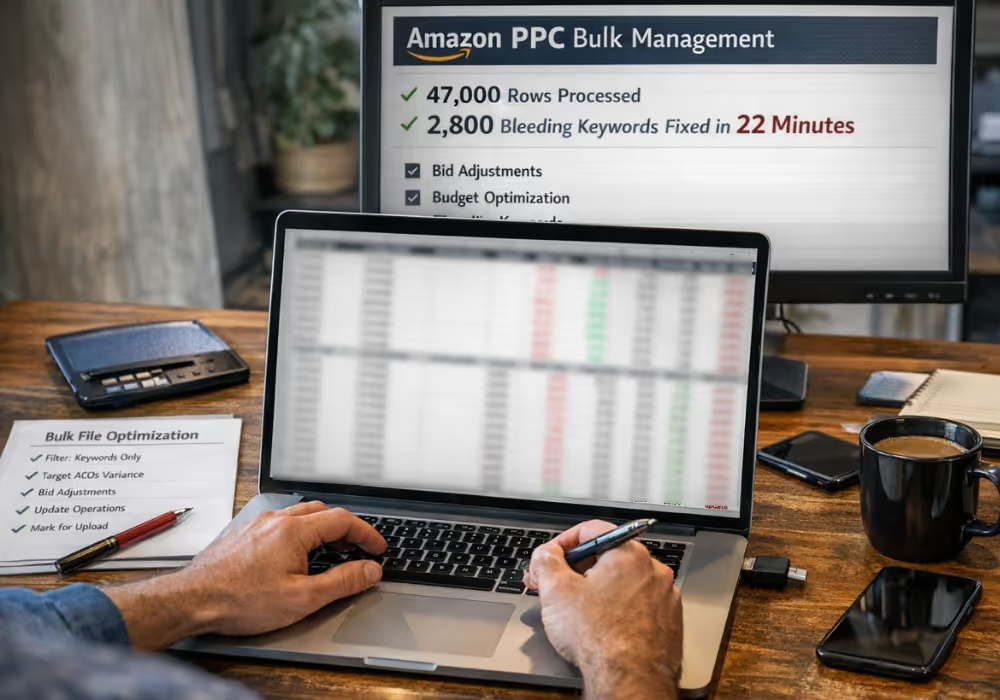
Last week I pulled a bulk file from a client's account. 47,000 rows. Over 2,800 keywords bleeding cash with zero orders.
Fixing that manually? You'd need three full days. Maybe four.
I did it in 22 minutes.
That's the difference between sellers who scale profitably and those who drown in their own campaigns. If you're managing an Amazon PPC account with any real complexity, bulk file operations aren't optional. They're survival.
Here's exactly how to use them.
Why Manual Campaign Management Is Killing Your Margins
Every minute you spend clicking through Campaign Manager is a minute you're not optimizing for profit.
The math is brutal. A typical 7-figure seller runs 50-100 campaigns with 500-2,000 keywords each. Making individual bid adjustments through the interface means:
3-5 clicks per keyword change
2-3 seconds load time between screens
Human error rate of roughly 2-4% on manual entries [1]
At scale, that's 40+ hours per week just to maintain—not improve—your campaigns.
Bulk operations flip this entirely. Download your entire account structure. Make hundreds of changes in a spreadsheet. Upload once. Done.
The real unlock isn't just time savings. It's consistency. When you optimize through bulk files, you apply the same logic across every campaign, every keyword, every bid. No fat-finger errors. No forgotten campaigns. No "I'll get to that one later."
This is how you build a profit-first system that compounds weekly instead of one-off fixes that decay.
How to Download Your Amazon Bulk File (Step-by-Step)
The download process seems simple until you're staring at a 3-hour processing time wondering what went wrong. Here's how to do it right.
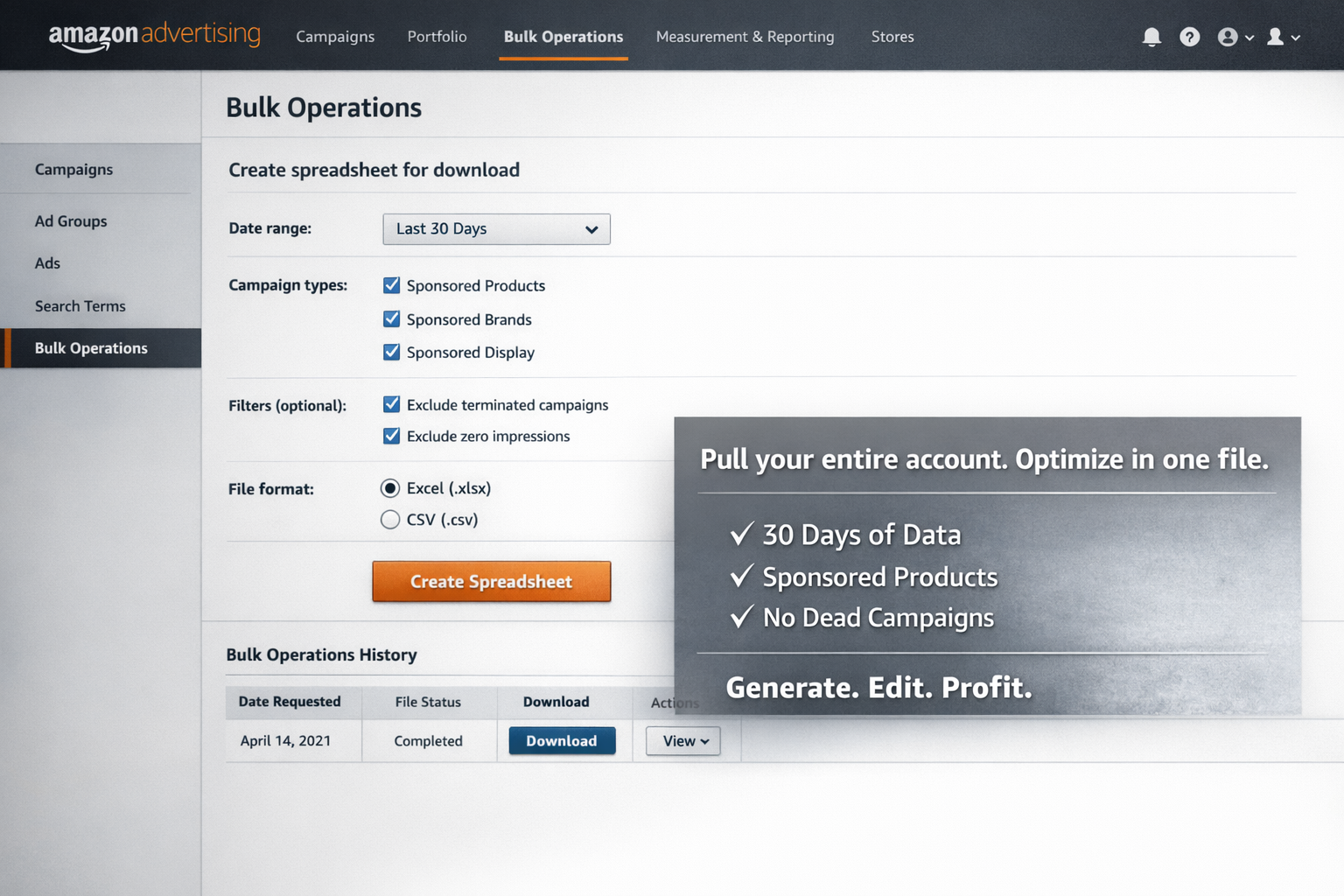
Navigate to Bulk Operations
Open Amazon Seller Central
Go to Advertising > Campaign Manager
Click Bulk Operations in the left sidebar
Select Create spreadsheet for download
Set Your Parameters
This is where most sellers mess up. Wrong settings mean either missing data or a file so bloated it crashes Excel.
Date range: Pull 30-60 days. Less than 30 days lacks statistical significance. More than 60 days includes outdated performance that skews decisions.
Campaign types: Select Sponsored Products, Sponsored Brands, and Sponsored Display based on what you're optimizing. Don't pull everything if you only need SP data.
Critical filters:
Exclude terminated campaigns — Dead campaigns add noise without value
Exclude zero impressions — Keywords that never served aren't worth analyzing yet
Download format: Choose .xlsx for Excel or .csv for Google Sheets or larger datasets.
Wait for Processing
Amazon's servers process bulk requests on a queue. Expect:
Small accounts (under 50 campaigns): 5-15 minutes
Medium accounts (50-200 campaigns): 30-60 minutes
Large accounts (200+ campaigns): 1-3 hours
Don't refresh repeatedly. Check back after the estimated time. Your file appears in the Bulk Operations history tab when ready.
Understanding Your Bulk File Structure
Opening your first bulk file feels like staring at the Matrix. Thousands of rows, dozens of columns, no obvious starting point.
Here's what actually matters.
Key Columns for Optimization
| Column | What It Controls | Why It Matters |
| Record ID | Unique identifier | Never modify—breaks the upload |
| Record Type | Campaign/Ad Group/Keyword/etc. | Filters what you're editing |
| Operation | Create/Update/Delete | Required for any change |
| Campaign Name | Parent campaign | Organization and filtering |
| Ad Group Name | Parent ad group | Targeting structure |
| Keyword or Product Targeting | The actual target | What you're bidding on |
| Match Type | Broad/Phrase/Exact | Targeting precision |
| Bid | Your CPC bid | Primary optimization lever |
| Campaign Budget | Daily budget | Controls spend velocity |
| State | Enabled/Paused | On/off switch |
Performance Columns (Read-Only)
These columns show historical data. You can't modify them—they're there for analysis:
Impressions
Clicks
Spend
Orders
Sales
ACoS
Amazon updates these based on your date range selection. Use them to inform decisions, then modify the actionable columns above.
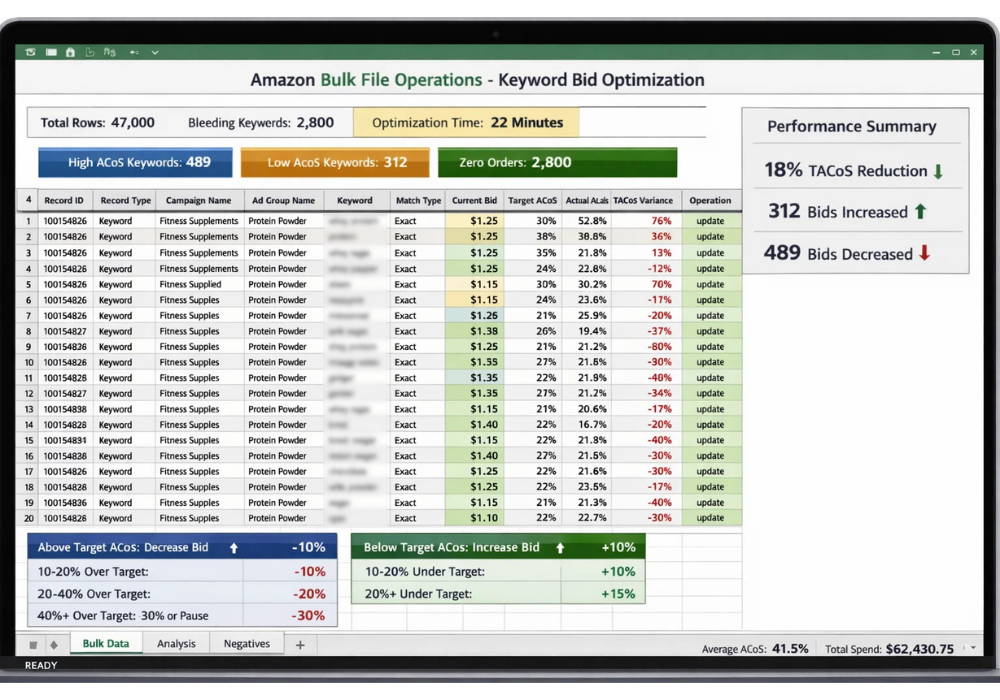
Workflow #1: Bid Adjustments at Scale
This is the bread and butter of bulk optimization. You're either leaving money on the table or burning it—bid optimization fixes both.
The Process
Step 1: Filter your data
In Excel or Sheets, filter the Record Type column to show only Keyword rows. This strips out campaigns, ad groups, and other row types you don't need.
Step 2: Add performance calculations
Create a new column for Target ACoS Variance:
= (Actual ACoS - Target ACoS) / Target ACoS
This tells you how far each keyword deviates from profitability.
Step 3: Apply bid rules
For keywords above target ACoS (unprofitable):
10-20% over target: Decrease bid by 10%
20-40% over target: Decrease bid by 20%
40%+ over target: Decrease bid by 30% or pause
For keywords below target ACoS (profitable with headroom):
10-20% under target: Increase bid by 10%
20%+ under target: Increase bid by 15-20%
Step 4: Mark for upload
In the Operation column, type update for every row you modified. Amazon ignores rows without an operation value.
Pro tip: Use Excel's Find & Replace to add "update" to all modified rows at once. Select your Operation column, Ctrl+H, find blank cells in selection, replace with "update."
Real Example
I ran this exact workflow on a supplement brand's account last month. 1,847 keywords analyzed. 312 bids increased on profitable terms. 489 bids decreased on bleeders.
Result: TACoS dropped 18% in three weeks while total sales held steady. That's pure margin recapture. No extra spend required.
This is exactly what we cover in our Reducing High ACoS SOP—systematic workflows that compound over time.
Want to know exactly how much you're wasting before you start optimizing? Grab our free Wasted Ad Spend Calculator and audit your own account in 10 minutes.
Workflow #2: Budget Reallocation
Most sellers set budgets once and forget them. Meanwhile, their best campaigns run out of budget by 2pm while losers burn cash all day.
Bulk files fix this fast.
Identify Winners and Losers
Filter your bulk file to show only Campaign record types. Sort by Sales descending.
Your top 20% of campaigns likely drive 60-80% of profitable revenue [2]. These are your winners.
Now sort by ACoS descending while filtering for campaigns with meaningful spend (at least $500 in your date range). Your bottom performers emerge.
Reallocate Strategically
Winner campaigns (below target ACoS, high sales):
Increase daily budget by 20-30%
Check if they're hitting budget caps (100% budget utilization = lost opportunity)
Loser campaigns (above target ACoS, low or negative profit contribution):
Decrease daily budget by 30-50%
Consider pausing entirely if no profitable keywords exist
Step to complete:
Modify the Campaign Budget column with new values
Add update to the Operation column for each changed row
The Profit Impact
I audited a home goods brand running 67 campaigns. Twelve of them drove 78% of profitable orders. But those twelve campaigns shared only 31% of total budget.
We flipped those ratios through bulk reallocation. Within 45 days, overall account profit increased 23% with zero additional ad spend.
Budget isn't about how much you spend. It's about where you spend it.
Workflow #3: Negative Keywords at Scale
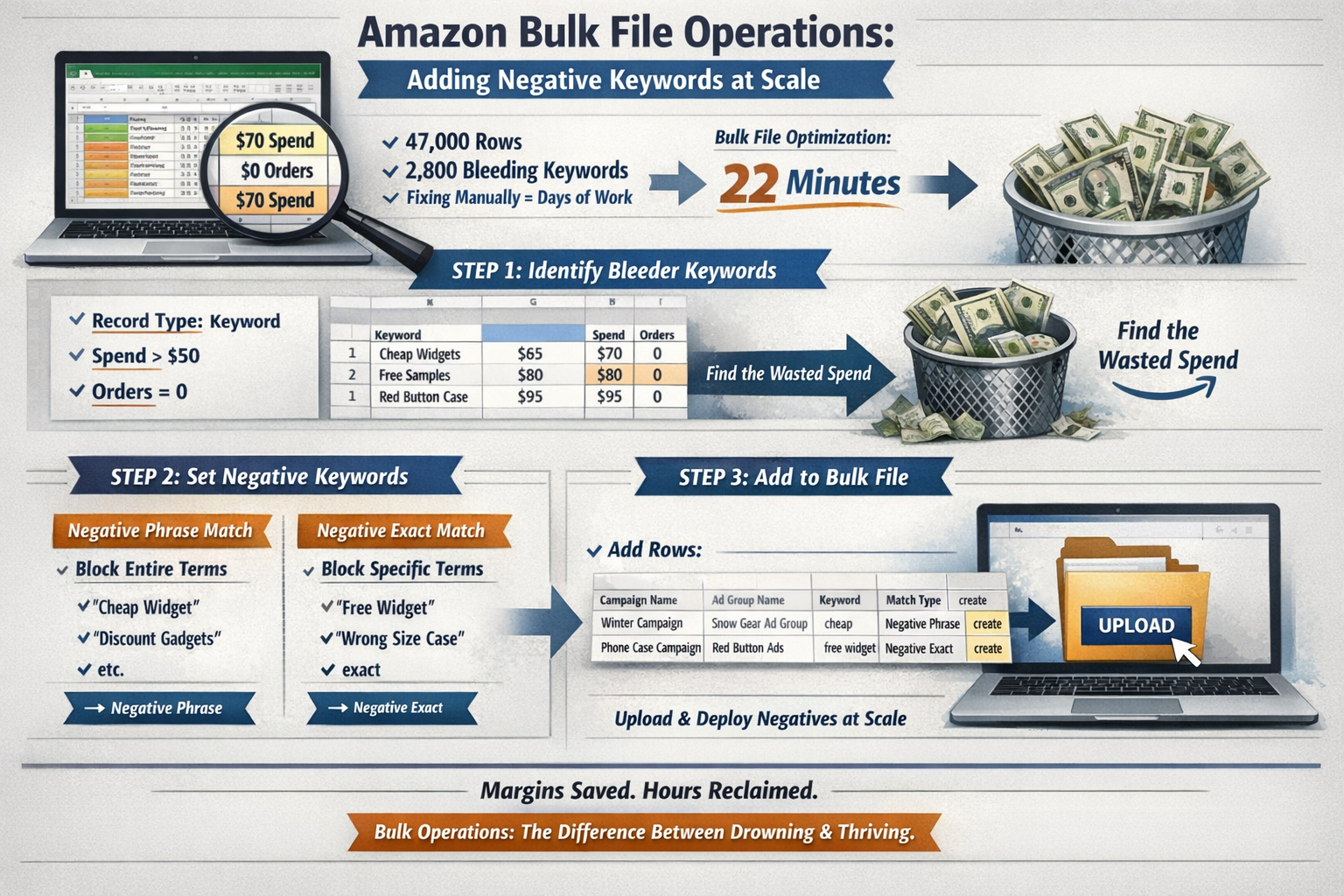
This is where bulk operations become genuinely powerful. Finding and adding negative keywords manually is tedious. Finding them in bulk is revelatory.
The Bleeder Filter
Create a filter in your spreadsheet with these criteria:
Record Type = Keyword or Search Term (if you downloaded search term reports)
Spend > $50 (adjust based on your account size)
Orders = 0
These are your bleeders. High spend, zero conversion. Pure waste.
Deciding Negative Phrase vs. Exact
Not every non-converter deserves permanent exile.
Add as Negative Exact when:
The search term is highly specific
It's clearly irrelevant to your product
Volume is low but spend is disproportionate
Add as Negative Phrase when:
The term contains a root word that's consistently irrelevant
Multiple variations of the same concept appear as bleeders
You want to block entire categories of searches
Example: Selling premium dog food, you find "cheap dog food" burning $200 with zero orders. Add "cheap" as negative phrase—it'll block "cheap dog food," "cheap puppy food," etc.
Bulk Adding Negatives
In your bulk file:
Add new rows at the bottom
Set Record Type to Campaign Negative Keyword or Ad Group Negative Keyword
Fill in Campaign Name and Ad Group Name (if ad group level)
Add the keyword in the Keyword column
Set Match Type to Negative Phrase or Negative Exact
Set Operation to create
Upload, and dozens of negatives deploy simultaneously.
Our Cutting Bleeders SOP walks through this exact process with downloadable templates.
Workflow #4: Placement Optimization
Placement data tells you where your ads perform best—top of search, rest of search, or product pages. Bulk files let you adjust multipliers based on actual performance instead of guesswork.
Pull Placement Reports
Amazon's bulk files don't include placement data directly. You need to:
Go to Campaign Manager > Campaigns
Select a campaign
Click Placements tab
Note performance by placement (top of search, rest of search, product pages)
Or download the Placement Report from Reports > Advertising Reports.
Apply Multipliers Strategically
In your bulk file, find these columns:
Bid Adjustment - Top of Search (first page)
Bid Adjustment - Product Pages
Amazon allows multipliers up to 900% [3].
High-performing placements: Increase multiplier by 10-25%Low-performing placements: Decrease multiplier or set to 0%
When to Use Placement Multipliers
Not every product benefits from top-of-search aggression. Consider:
High margin products: Push top-of-search harder. The visibility often converts better and protects premium positioning.
Commodity products: Rest-of-search and product pages may convert more efficiently where price comparison happens.
New launches: Top-of-search accelerates ranking signals but burns budget faster.
Test, measure, adjust through bulk operations. Not through gut feelings.
How to Upload Your Modified Bulk File
Downloading is easy. Uploading is where most sellers create expensive mistakes.
Pre-Upload Checklist
Before you upload anything:
[ ] Operation column populated — Only rows with "update," "create," or "delete" will process
[ ] No modified Record IDs — Changing these creates duplicates or errors
[ ] File format correct — .xlsx or .csv, depending on your download format
[ ] No special characters in keywords — Emojis, certain symbols cause failures
[ ] Budget/bid values are numbers — No dollar signs, commas, or text
Upload Process
Return to Campaign Manager > Bulk Operations
Click Upload spreadsheet
Select your modified file
Wait for validation (Amazon checks format before processing)
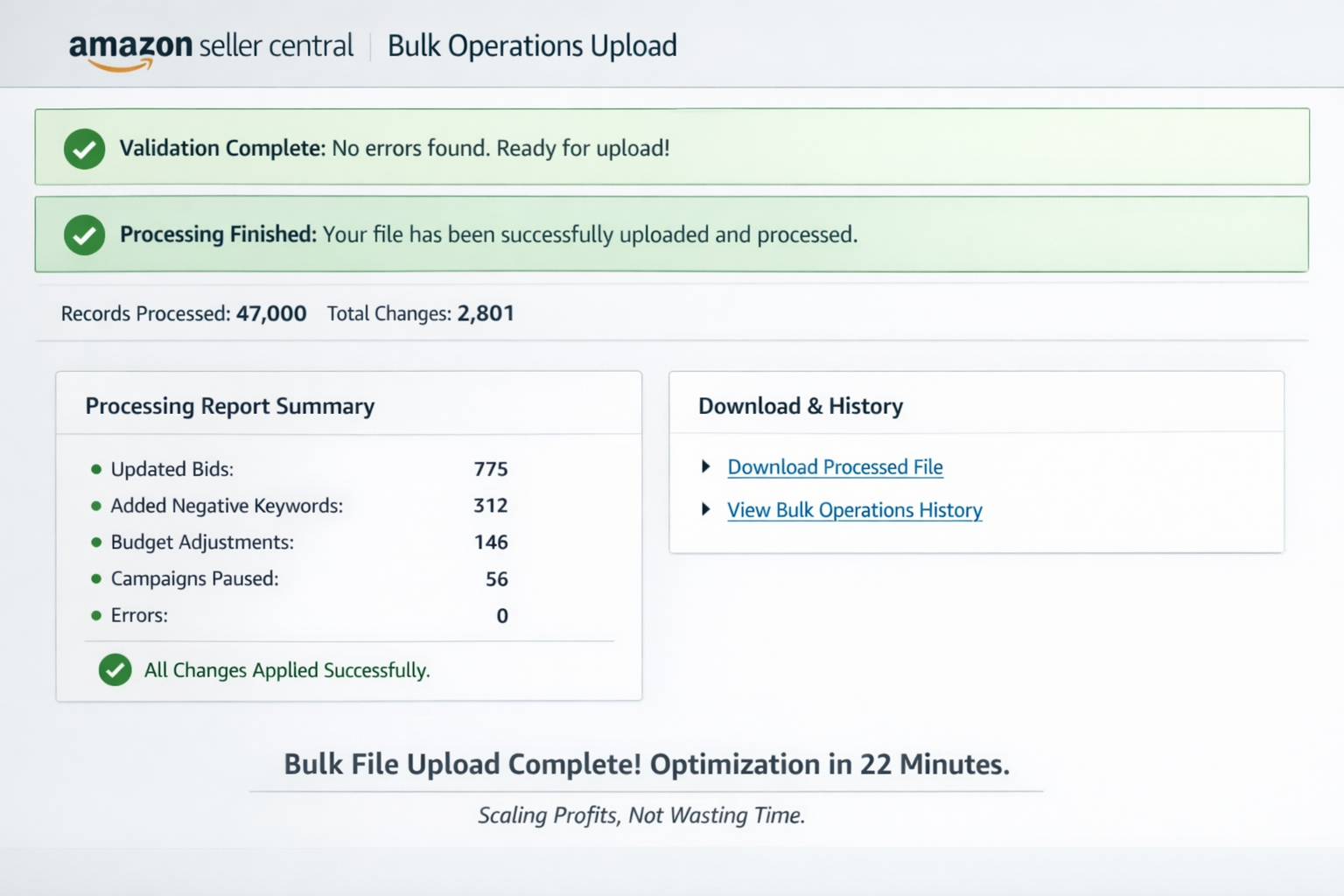
Review the processing report
Troubleshooting Common Errors
| Error Message | Cause | Fix |
| Invalid Record ID | Modified or deleted the ID | Re-download and start over |
| Bid exceeds maximum | Bid over $1,000 | Reduce bid value |
| Invalid operation | Typo in Operation column | Check spelling: update, create, delete |
| Campaign not found | Name mismatch or terminated campaign | Verify campaign still exists |
| Budget below minimum | Budget under $1/day | Increase to at least $1 |
Amazon's processing report flags row-by-row errors. Fix flagged rows and re-upload just those corrections.
Building Your Weekly Optimization Cadence
Bulk operations aren't a one-time fix. They're the backbone of a scalable optimization system.
Here's the cadence I use with clients:
Weekly (30 minutes):
Download fresh bulk file
Run bleeder filter, add negatives
Adjust bids on top 100 keywords by spend
Bi-weekly (45 minutes):
Full bid optimization pass
Budget reallocation review
Placement multiplier adjustments
Monthly (60 minutes):
Campaign structure audit
Search term harvesting
Portfolio-level budget planning
This compounds. Week one, you cut obvious waste. Week four, you're fine-tuning a machine. By week twelve, your account runs cleaner than 90% of competitors.
That's not hyperbole. Most sellers never touch bulk files. You will.
The Profit-First Approach to Bulk Operations
Bulk files are a tool. Profit is the objective.
Every optimization you make should answer one question: Does this improve contribution margin?
Lowering ACoS on a 10% margin product from 35% to 30% still loses money. Raising ACoS on a 60% margin product from 25% to 30% might be the right move if it increases volume.
This is why our Profit Feedback Loop framework starts with margin data, not ACoS targets. Bulk operations execute faster when you know exactly what "profitable" means for each SKU.
Frequently Asked Questions
How often should I download and optimize bulk files?
Weekly optimization is the sweet spot for most 7-figure accounts. Less frequent means waste accumulates. More frequent creates diminishing returns unless you're in an aggressive launch phase. The goal is building a consistent cadence that compounds—small improvements weekly beat major overhauls quarterly.
Can I damage my campaigns with bulk file errors?
Yes, but Amazon provides safeguards. Invalid operations get rejected during upload validation. The bigger risk is logical errors—accidentally pausing winning keywords or setting bids too low. Always review your changes before upload and start with smaller batch modifications until you're confident with the process.
What's the maximum number of rows I can upload at once?
Amazon accepts bulk files up to several hundred thousand rows, but processing time increases significantly. For large accounts, consider splitting uploads by campaign type or portfolio. Files over 100,000 rows may take hours to process and increase error troubleshooting complexity.
Should I use bulk files for new campaign creation?
Absolutely. Building campaigns through bulk files is faster and more consistent than the UI. Create standardized templates for your campaign structures, duplicate and modify for new products, then upload. This ensures naming conventions, default settings, and organization stay uniform across your account.
How do bulk operations fit with automated bidding rules?
Bulk operations complement Amazon's automated rules—they don't replace them. Use Amazon's rules for real-time adjustments (budget increases when spending too fast, bid modifications based on intraday performance). Use bulk operations for strategic changes that require analysis: weekly bid optimization, negative keyword additions, and structural changes that rules can't handle.
Ready to Stop Bleeding Ad Spend?
Bulk file mastery separates operators from amateurs. You now have the exact workflows to optimize thousands of keywords in minutes instead of days.
But knowing the process and having time to execute are different problems.
If you're running a 7-figure account and want a team that lives in bulk files—cutting waste, reallocating budget, and compounding profit weekly—book a call with PPC Maestro. We'll audit your account, show you exactly where money is leaking, and build systems that scale.
Check out our client results to see what profit-first PPC management actually looks like.
Why Trust This Guide
PPC Maestro manages millions in Amazon ad spend for 7-figure private label brands. Our founder, Bernard Nader, built the Profit Feedback Loop framework specifically to solve the wasted spend problem that plagues scaling sellers. Every workflow in this guide comes from real client accounts—tested, refined, and proven to improve contribution margin. We don't teach theory. We teach what works in the trenches.
Cited Works
[1] Amazon Advertising — "Bulk Operations Overview." https://advertising.amazon.com/help/GTHSRMMBXWBNFWHA
[2] Amazon Seller Central — "Campaign Manager User Guide." https://sellercentral.amazon.com/help/hub/reference/G202004230
[3] Amazon Advertising — "Adjust Bids by Placement." https://advertising.amazon.com/help/G9HZBLP3YL2CXNL6