I audited a 7-figure account last month—$86k spent, $44k wasted.
That's not advertising. That's arson.
And here's the thing: that seller wasn't clueless. They had an agency. They had campaigns running. They had "optimized" bids.
What they didn't have was a system to find and kill the bleeding.
If you're spending $20k, $50k, or $100k+ per month on Amazon PPC and your profit margins keep shrinking, this article is your intervention. I'm going to show you exactly how to fix wasted ad spend in Amazon PPC campaigns—the same process we use to recover tens of thousands in misallocated budget for 7-figure sellers.
No fluff. No theory. Just the steps you can execute this week.

Why Amazon PPC Waste Happens (And Why Most Sellers Miss It)
Here's the uncomfortable truth: Amazon wants you to spend more.
Their algorithm doesn't optimize for your profit. It optimizes for their revenue. Every click you pay for—whether it converts or not—puts money in Amazon's pocket.
That means waste is baked into the system unless you actively fight it.
The most common causes?
1. Keyword Bloat
You launched with broad match. You added automatic campaigns. You never pruned.
Now you're bidding on hundreds of irrelevant search terms that will never convert for your product.
I see this constantly: sellers spending on terms like "cheap alternative to [competitor]" when their product is premium-priced. Or targeting "gift for dad" when their product is clearly for professional use.
Every irrelevant click costs you twice—once for the wasted spend, and again for the conversion rate hit that drags down your organic ranking.
2. Low-Converting ASINs Eating Budget
Not every product deserves equal ad spend.
If your hero SKU converts at 15% and your clearance item converts at 3%, they shouldn't be competing for the same budget. But most campaign structures treat them identically.
Result? Your profitable products get starved while your losers burn cash.
To find these underperformers, pull your Advertised Product Report from Campaign Manager. Sort by ASIN, then compare conversion rates and ACoS across your catalog. Any ASIN with spend above $200 and conversion rate below your catalog average is a candidate for budget reduction or campaign isolation.
3. Placement Blindness
Amazon gives you three major placement buckets: Top of Search, Rest of Search, and Product Pages [1].
Each performs differently for every product. I've seen accounts where Top of Search converts at 22% and Product Pages convert at 4%—but the seller was bidding equally across all placements.
That's not optimization. That's gambling.
4. No Negative Keyword Strategy
This is the silent killer.
Without aggressive negative keyword management, you keep paying for the same garbage search terms week after week. That $50/day bleeder becomes $1,500/month. Multiply that across 20 bad terms and you've got $30k/year walking out the door.
The 4-Step Audit to Find Your Wasted Spend
Stop guessing. Start auditing.
Here's the exact process we use in the Profit Feedback Loop to identify waste within 48 hours.
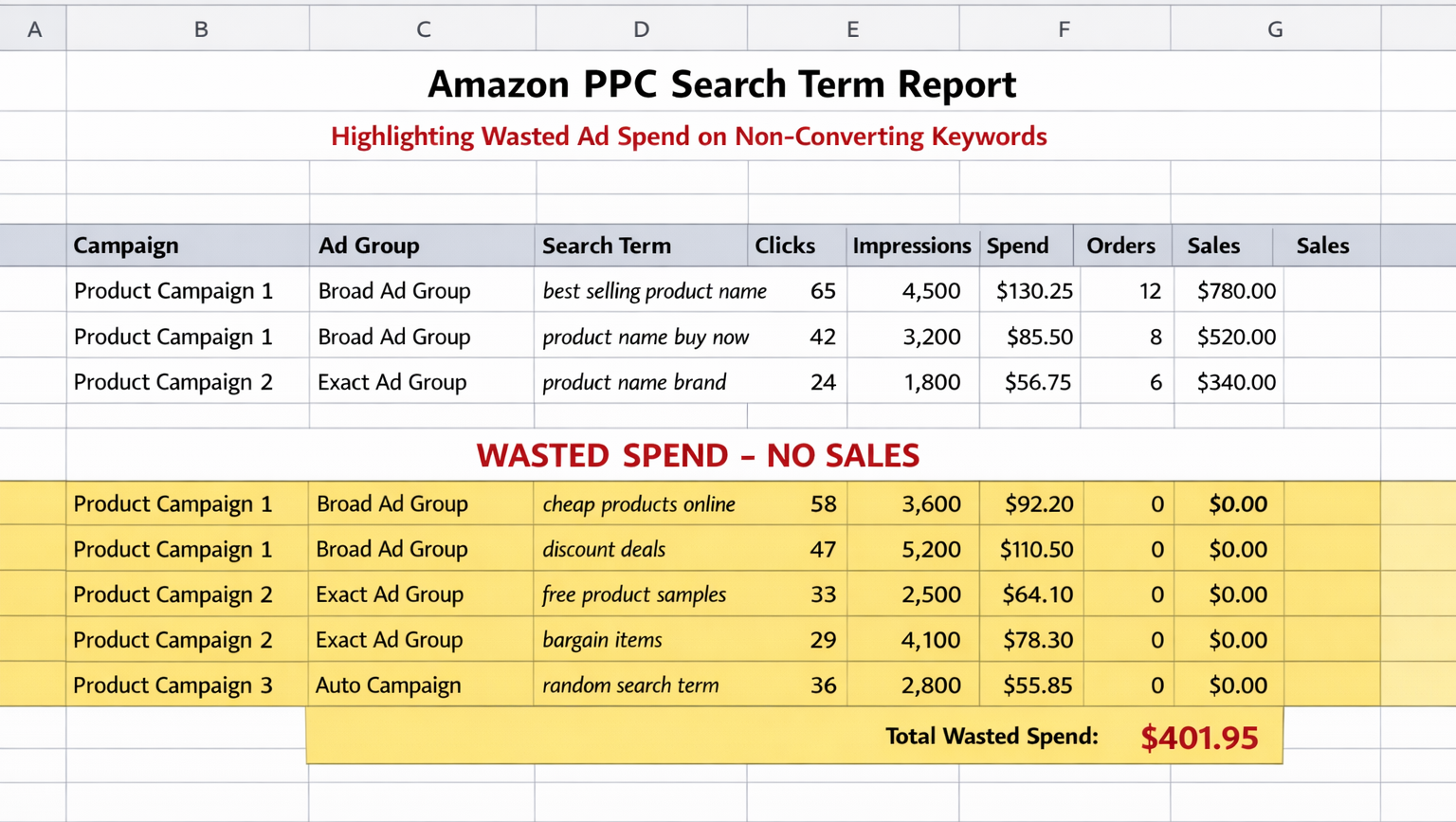
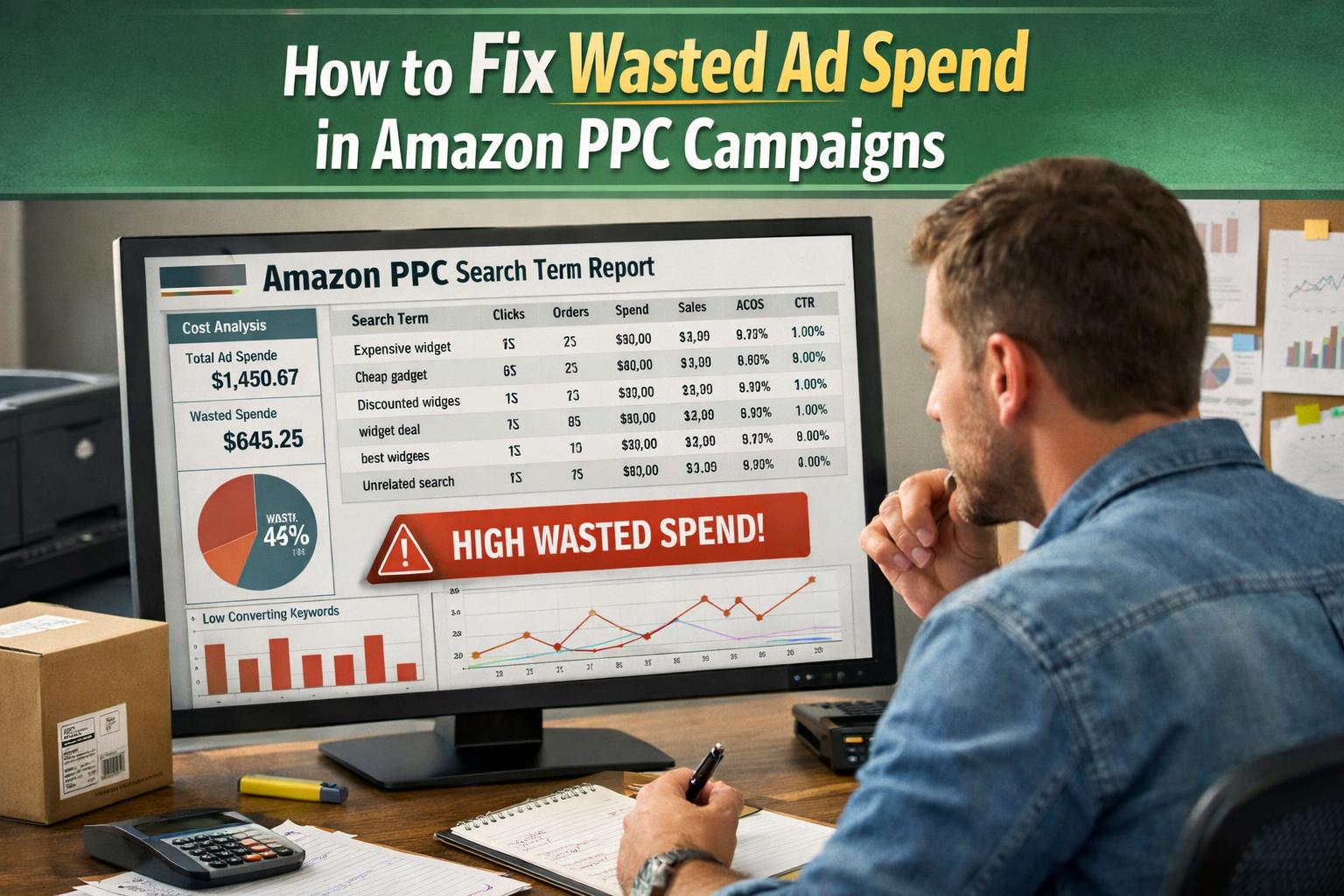
Step 1: Pull Your Search Term Report (Last 60 Days)
Go to Campaign Manager → Reports → Search Term Report.
Download 60 days minimum. You need enough data to see patterns, not flukes.
Critical note on attribution: Amazon uses a 7-day attribution window for Sponsored Products (14-day for Sponsored Brands). This means a click today might not show its conversion until next week's report. Never make negative keyword decisions based on data less than 14 days old, or you'll kill terms that are actually converting.
Sort by spend (highest first). This is where your money actually went—not where you intended it to go.
Step 2: Flag the Bleeders (With Nuance)
A "bleeder" is any search term that:
Has significant spend (we use $50+ as a threshold)
Has zero orders OR
Has an ACoS above your break-even point
But here's where most sellers get it wrong: not all high-spend, low-conversion terms are immediate negatives.
Use this decision framework:
| Scenario | Spend | Orders | Action |
| Zero conversions | $50+ | 0 | Negate immediately (exact match) |
| Low ROAS, some sales | $100+ | 1-2 | Reduce bid by 30-40%, monitor 14 days |
| Marginal performer | $200+ | 3+ but above break-even ACoS | Isolate to exact match campaign with lower bid |
| Branded term (your brand) | Any | Any | Never negate—investigate listing issues instead |
Warning on branded terms: If your own brand name is showing high spend with low conversions, the problem isn't the keyword—it's your listing or pricing. Negating your brand terms hands that traffic to competitors.
In one recent audit, we found 147 search terms that had spent over $100 each with zero conversions. Total damage: $22,400 in 60 days. You can see the full breakdown in our Results section.
Step 3: Calculate Your True Break-Even ACoS
Most sellers use the wrong ACoS target.
Your break-even ACoS isn't a single number—it's different for every product based on margin.
Formula:
Break-Even ACoS = (Product Price - All Costs) ÷ Product Price × 100
If your product sells for $40, costs $12 to make, has $8 in Amazon fees, and $5 in shipping, your true margin is $15.
Break-Even ACoS = $15 ÷ $40 = 37.5%
Anything above 37.5% ACoS on that product is losing money on every sale. Not breaking even. Losing.
For a detailed breakdown, check our 30-Day Profit Optimization Plan.
Step 4: Categorize Every Search Term
Create three buckets:
| Category | Criteria | Action |
| Winners | Converting below break-even ACoS | Increase bids 15-25%, isolate to exact match campaign |
| Testers | Low spend (<$50), no conversions yet | Set spend cap at $75, monitor for 14 days before deciding |
| Bleeders | High spend, no/poor conversions (per Step 2 framework) | Negate or reduce bid based on scenario |
This isn't complicated. It's just work most sellers never do.
Ready to see how much you're actually wasting? Use our free Wasted Ad Spend Calculator to get a baseline number in 5 minutes.
How to Eliminate Waste at Scale (Using Bulk Operations)
Finding waste is step one. Cutting it without collateral damage is step two.
If you're a 7-figure seller, you're not clicking "add negative keyword" one by one in the UI. You're using bulk files. Here's how.
The Bulk File Workflow for Negative Keywords
Step 1: Download your bulk file from Campaign Manager → Bulk Operations → Download.
Step 2: Open in Excel or Google Sheets. Filter by:
Campaign Name (to isolate specific campaigns)
Record Type = "Keyword" or "Product Targeting"
Step 3: Create a new sheet for your negatives. For each bleeder search term, add a row with:
Campaign Name (the campaign where it appeared)
Ad Group Name
Keyword = [your bleeder term]
Match Type = "Negative Exact"
Operation = "Create"
Step 4: Upload the bulk file. Amazon processes changes within 15-30 minutes.
This process takes 20 minutes once you've done it twice. We've built an entire SOP around this—grab our Cutting Bleeders SOP for the exact workflow with screenshots.
Why Exact Match Negatives (Not Phrase Match)
Every bleeder search term gets added as an exact match negative in the campaign where it appeared.
Not phrase match. Exact match.
Here's why: Phrase match negatives are nuclear bombs. If you add "blue widget" as a phrase negative, you'll also block "best blue widget for home" and "premium blue widget set"—terms that might convert profitably.
Exact match negatives are surgical. They block only the specific garbage term while preserving everything else [2].
Bid Adjustments by Placement
Once you know which placements convert, adjust accordingly.
In Campaign Manager, you can set placement multipliers up to 900%. But most sellers should start conservative:
If Top of Search converts 2x better than other placements, add a 50% bid increase there
If Product Pages consistently underperform, reduce base bids by 20-30% rather than excluding entirely
Pull your Placement Report weekly. The data tells you exactly where your money works hardest [1].
The Profit Impact: What Reallocation Actually Looks Like
Let me show you what happens when you stop burning money and start deploying it intelligently.
Case: $528k Annual Ad Spend Account
Before audit: 34% of spend going to non-converting search terms
Waste identified: $179k/year
Reallocation: Shifted to top 50 converting terms + product targeting on competitor ASINs
Result: TACoS dropped from 18% to 12%. Profit increased $94k in 6 months.
Same ad spend. Radically different outcome.
That $44k we recovered from the account I mentioned at the top? It didn't disappear. It got reallocated to the campaigns and search terms that were already converting profitably—but were budget-capped.
The result: overall spend stayed flat, but profitable sales increased 31% in 60 days.
That's the Profit Feedback Loop in action: cut waste, reallocate to winners, measure profit impact, repeat.
Tools That Actually Help Reduce Waste
You don't need 15 software subscriptions to manage Amazon PPC profitably.
But you do need visibility.
Amazon's Native Tools (Free)
| Report | What It Shows | Use It For |
| Search Term Report | Where your money actually went | Finding bleeders, identifying winners |
| Placement Report | Conversion rates by placement type | Bid multiplier decisions |
| Advertised Product Report | Performance by ASIN | Finding low-converting products eating budget |
| Budget Report | Campaigns hitting daily caps | Identifying starved winners |
These are free. Use them weekly.
Third-Party Platforms
Tools like Helium 10, Perpetua, and Pacvue can help with bulk operations and automation [3]. But here's my warning:
Automation without strategy is just faster waste.
I've audited accounts using every major tool on the market. The tool didn't save them—their lack of a profit-first system sunk them.
If you're evaluating software, make sure it supports:
Search term-level negative keyword management
Placement bid adjustments
Custom ACoS/TACoS targets by product margin
Bulk file import/export
The Maintenance System (So Waste Doesn't Creep Back)
Auditing once isn't enough.
Amazon's algorithm constantly tests new search terms in your campaigns. Competitors change. Seasonality shifts. Without a recurring system, waste regenerates within weeks.
Here's the cadence we recommend:
| Frequency | Task |
| Weekly | Review search term report (14+ days of data), negate new bleeders via bulk file |
| Bi-weekly | Check placement performance, adjust multipliers |
| Monthly | Full campaign structure review, budget reallocation, advertised product analysis |
| Quarterly | Deep audit with break-even recalculation by SKU, TACoS target refresh |
Document everything. Use bulk files to make changes at scale. This is SOP-driven optimization—not heroics.
Our Reducing High ACoS SOP covers the exact weekly workflow.
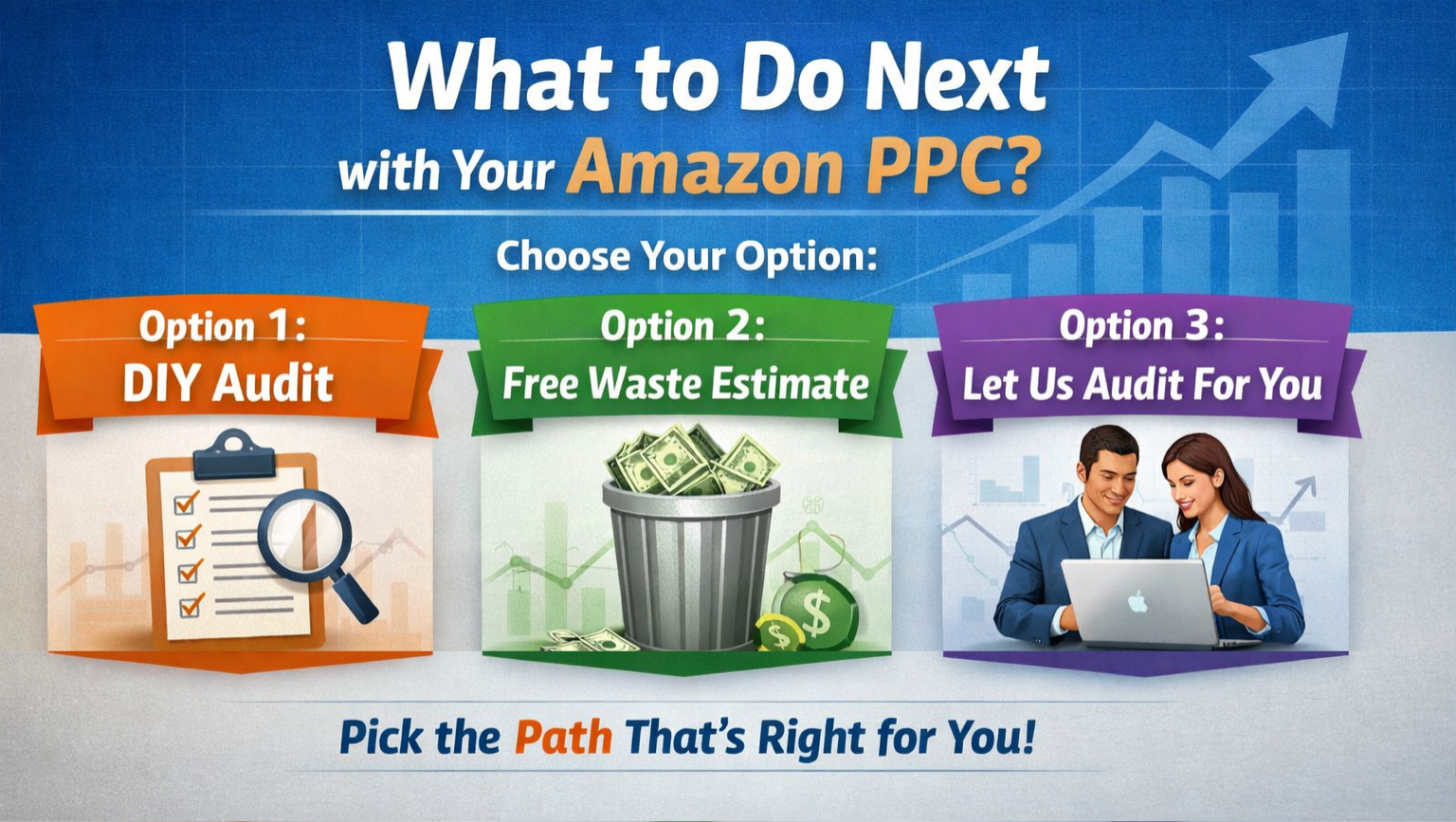
What To Do Next
If you've made it this far, you're serious about fixing this.
Here are your options:
Option 1: DIY Audit
Download our SOPs, pull your search term reports, and follow the process above. It works. It just takes time and discipline.
Option 2: Free Waste Estimate
Use the Wasted Ad Spend Calculator to get a baseline number. If it's higher than you expected, you'll know it's time to dig deeper.
Option 3: Let Us Audit For You
We run profit-focused audits for 7-figure Amazon sellers. We'll find the waste, map the reallocation opportunities, and show you exactly what fixing it looks like.
Book a call here and let's see what's leaking.
Frequently Asked Questions
How much wasted ad spend is "normal" for Amazon PPC?
There's no acceptable level of waste—but most unoptimized accounts we audit have 20-40% of their budget going to non-converting search terms. The goal is continuous reduction, not perfection. A well-managed account typically keeps waste under 10% through weekly negative keyword hygiene using bulk files.
Why is my TACoS increasing even though my ACoS looks stable?
TACoS (Total Advertising Cost of Sale) includes organic revenue in the denominator. If your organic sales decline—often because bad PPC is hurting your listing's conversion rate—your TACoS rises even with flat ad performance. This is why we focus on TACoS as the true health metric, not ACoS in isolation.
How often should I add negative keywords?
Weekly, minimum. Amazon continuously tests new search terms through broad and auto campaigns. Without weekly pruning, new bleeders accumulate fast. We add exact match negatives every 7 days based on the search term report—but only for terms with 14+ days of data to account for attribution lag.
Should I ever negate my own branded search terms?
Almost never. If your brand terms show high spend with low conversions, the problem is your listing, pricing, or reviews—not the keyword. Negating branded terms hands that traffic directly to competitors running conquest campaigns. Investigate the root cause instead.
What's the fastest way to see how much I'm wasting?
Pull a 60-day search term report, filter for spend over $50 with zero orders, and sum the total. That's your minimum baseline waste. For a more detailed estimate including marginal performers, use our Wasted Ad Spend Calculator.
Why Trust This Advice
PPC Maestro manages millions in Amazon ad spend for 7-figure private-label sellers. Our Profit Feedback Loop framework has helped sellers cut wasted spend by 30%+ while increasing profitable sales. Founder Bernard Nader teaches these systems publicly through YouTube tutorials, conference presentations, and downloadable SOPs. Every recommendation here comes from hands-on account management—not theory.
Cited Works
[1] Amazon Seller Central Help — "Adjust Bids by Placement." https://sellercentral.amazon.com/help/hub/reference/G201687550
[2] Amazon Advertising Help — "Add Negative Keywords to Sponsored Products Campaigns." https://advertising.amazon.com/help/GKRTYL6L6Y3K2ZFC
[3] Marketplace Pulse — "Amazon Advertising Software and Tools." https://www.marketplacepulse.com/amazon/advertising